Link to our HOME page


This help page is very important in understanding all the different facilities that are available on this disc. We recommend that you read this first before you begin exploring the rest of the information as you will get more out of this DVD Rom if you understand how it works.


Instructions on how to do various tasks that are operating system dependant are given for Microsoft Windows Vista. Most should also apply equally well to Windows XP.


IMPORTANT NOTE FOR WINDOWS XP SERVICE PACK 2 AND WINDOWS VISTA USERS


For some odd reason Microsoft has decided to make life difficult for anyone using these operating systems when it comes to displaying certain information using Internet Explorer.


There is a security feature that causes a warning message to be displayed at the top of web-pages whether you are connected to the internet or not. We think this is rather a silly idea and it will eventually drive you crazy if you are trying to use this disc as it is meant to be used.


The solution is to turn the security feature off while you are using this disc and the instructions to do this in Windows Vista follow:

  1. Click on the 'Tools' option on the menu at the top of this screen.

  2. Click on 'Internet Options' on the menu that pops up.

  3. Click on the 'Advanced' tab.

  4. Scroll down until you see the 'Security' section.

  5. Make sure that check boxes next to the options 'Allow active content from CDs to run on My Computer' and 'Allow active content to run in files on My Computer' are both ticked.

  6. Click on 'Apply' and then click on 'Close'.

  7. Close down Internet Explorer and re-start.

If you want to re-enable the security features before you connect to the internet simply follow the instructions above but make sure the options in point 5 have the ticks removed.


CONFIGURE YOUR COMPUTER CORRECTLY


The pages of this disc are designed to fit together properly at a specific screen resolution and using a specific text size. (You will only need to go through this configuration process if information displayed by this disc doesn't look right for some reason.)


1. Setting your screen resolution:

  • Left click on the START icon in the lower left hand corner of the screen.

  • Left click on the CONTROL PANEL option from the menu that appears

  • Scroll down and find the PERSONALIZATION option and double left click on it.

  • Left click on DISPLAY SETTINGS.

  • Use the slider bar in the window that opens to change the screen resolution to 1024x768.

  • Left click on the APPLY button.

  • Left click on the YES button.

  • Left click on the OK button.

  • Close the CONTROL PANEL.

2. Setting the correct text size in Microsoft Internet Explorer.

  • When Internet Explorer is running left click on the VIEW menu option at the top of the screen.

  • Move the cursor over the option TEXT SIZE and then when presented with various options slide it across and select MEDIUM by left clicking.

  • Note: Some widescreen laptop computers may be better configured to SMALLER text.

3. Setting default system text size in the Control Panel.

  • Left click on the START icon in the lower left hand corner of the screen.

  • Left click on the CONTROL PANEL option from the menu that appears

  • Scroll down and find the PERSONALIZATION option and double left click on it.

  • Left click on the option ADJUST FONT SIZE (DPI) under the heading TASKS.

  • Make sure the option SELECT DEFAULT SCALE (96 DPI) is selected.

  • Left click on the APPLY button.

  • Left click on the RESTART NOW option when it appears.

Your computer will now be correctly configured to display the information supplied on this disc.


NEW - CLIMATE DATA


We are adding climate data for major population centres around W.A. This will consist of average monthly temperatures and rainfall. It must be remembered that these figures are only averages and temperatures and rainfall can be expected to vary quite a lot from the figures given.


The information will be presented on a page as follows:


On each page that this information appears on will also be a link to the Bureau of Meteorology site which has far more information available for those who want to find out more detail about our weather.


NEW - GOOGLE MAPS


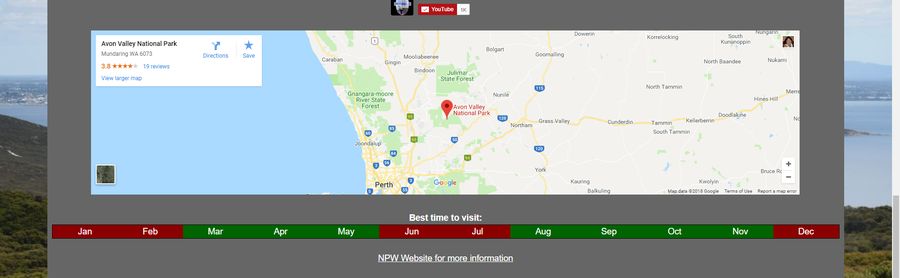
We are adding Google Maps to the website because they are a wonderful interactive resource. The basic maps will appear on our pages as follows:


This is the map from the Perth page as an example. The controls for using this map are on the upper left hand side:


Clicking the arrows allows you to move around the map and clicking + and - allows you to zoom in and out.


The second control allows you to select from 4 different types of map. The default (shown above) is 'Map'.


'Sat' or satellite view will look as follows:


'Ter' or terrain will display like this:


'Earth' will display like this:


You will note that the controls on the 'Earth' view change.


The top control : the eye


  • Clicking on the left and right arrows will change your compass viewpoint.

  • Clicking the up and down arrows will move the view up or down.

  • Clicking and holding down the centre button of your mouse (the roller wheel) and moving the mouse will also allow you to change the viewpoint.

  • Using this control you can tilt the map in such a way so it looks as though you are flying over the terrain.

The centre control :

  • Clicking the arrows on this control will move you around the map.

  • You can click and hold down your left mouse button on the map and move the mouse to move around.

The bottom control :

  • The + and - control acts in the same manner as the other map types.

  • You can also roll the centre button on your mouse to zoom in and out.

  • Clicking the right mouse button and holding it down while you drag the mouse up and down will also alter the zoom level.

While you are in the 'Map' 'Sat' or 'Ter' screens you can also click on teh Google logo in the bottom left hand corner to display the map via Google Maps. This allows you access to more information and more photos of the area. For the Perth map it will appear as:


NEW - THE EXPLORE WA BUTTON


This is a new feature of the site located on our HOME page that will allow you to randomly explore our website with a single click. There are currently 600 pages to explore. Some pages, especially the biography pages are not equipped with the

button. In these cases you need to use the browser's BACK button (usually a left pointing arrow at the top of the screen) to get back to the HOME page.


THE SIDE MENU


Most subject pages have a side menu on the right hand side of the screen. The top option of this menu is a drop down sub-menu with links to all 26 main index pages. The next menu item is a link to this page 'HELP'. The menu will be located on the right hand side of most subject pages and will appear as follows:


Following is an explanation of the other options included on this menu:


ADVS - Other CD-Rom and DVD-Rom based books, INTR - Introdution, QUIZ - W.A. Quiz page, READ - Reading list, SHOW - Slide shows, SMAP - Site Map, TOWN - Town location map, VIDS - Videos.


Two new buttons have been added to the menu and these appear as [-] and [+]. You can use these to increase or decrease the font size on any of the pages this menu appears on.


There are a few basic rules to navigating this site that you need to know.


If you are familiar with the internet and the way links work you can skip Part One and go on to the more specific help given in Part Two.


Note: On rare occasions there may be a problem when clicking on the button as nothing happens. You simply need to click on the button again to get back to the correct page. This appears to happen because IE gets a bit confused.


Because it is possible for all sorts of different themes and colour schemes to be used in Microsoft Windows some of the screens displayed in this help page may appear slightly differently on your computer.


Part One


Browsers, Mice, Scrolling and Links.


1. Browser